
Schedule a WhatsApp message in SendOnTime.io by choosing recipients, building the content, setting a date and time, and confirming Final Review. The message is sent from your own linked WhatsApp account, which must remain connected when the schedule runs.
Text to one contact All plans
Group messages Pro and Enterprise
Channels Enterprise only
Channel scheduling also requires owner or admin access.
Before you start: Link your WhatsApp account and check your displayed timezone. Channel scheduling requires Enterprise and a channel you own or administer.
Before You Schedule
Complete WhatsApp linking before creating a message. If necessary, follow Connection Methods.
This guide follows a one-time message. Recipient types and the per-send recipient limit are explained in Recipients, Contacts & Groups.
Start a New Message
On the dashboard, select Schedule Message to open the message-creation flow.
Choose Your Recipients
- On Recipients, search by name or phone number, or browse the available recipient lists.
- Select the intended destinations and review the chips under You Selected.
- Remove an unwanted destination with its chip's remove control.
- Select Next after selecting at least one recipient.
If you need to add an unsaved number, follow Add Unsaved Contacts and review the selected recipient afterward.
Build Message Content
Prepare your message in the block composer. It supports Text, Photo, Document, Audio, Video and Contact blocks, with text or captions for supported files.
Review the block order and remove content you do not intend to send. The first block has no Delay control; subsequent blocks show a delay in seconds from the preceding block. Check any configured delay before continuing.
For a simple first schedule, use one text block and review its wording before moving to the date-and-time step.
Set Date and Time
- Open the Set Date & Time step.
- For a one-time send, choose Never in Repeat.
- Choose the intended Date and Time, then continue to Final Review.
Check the displayed date and time carefully. If your detected timezone is wrong, correct it using Time Zone Settings before creating the schedule.
Review Delivery Details
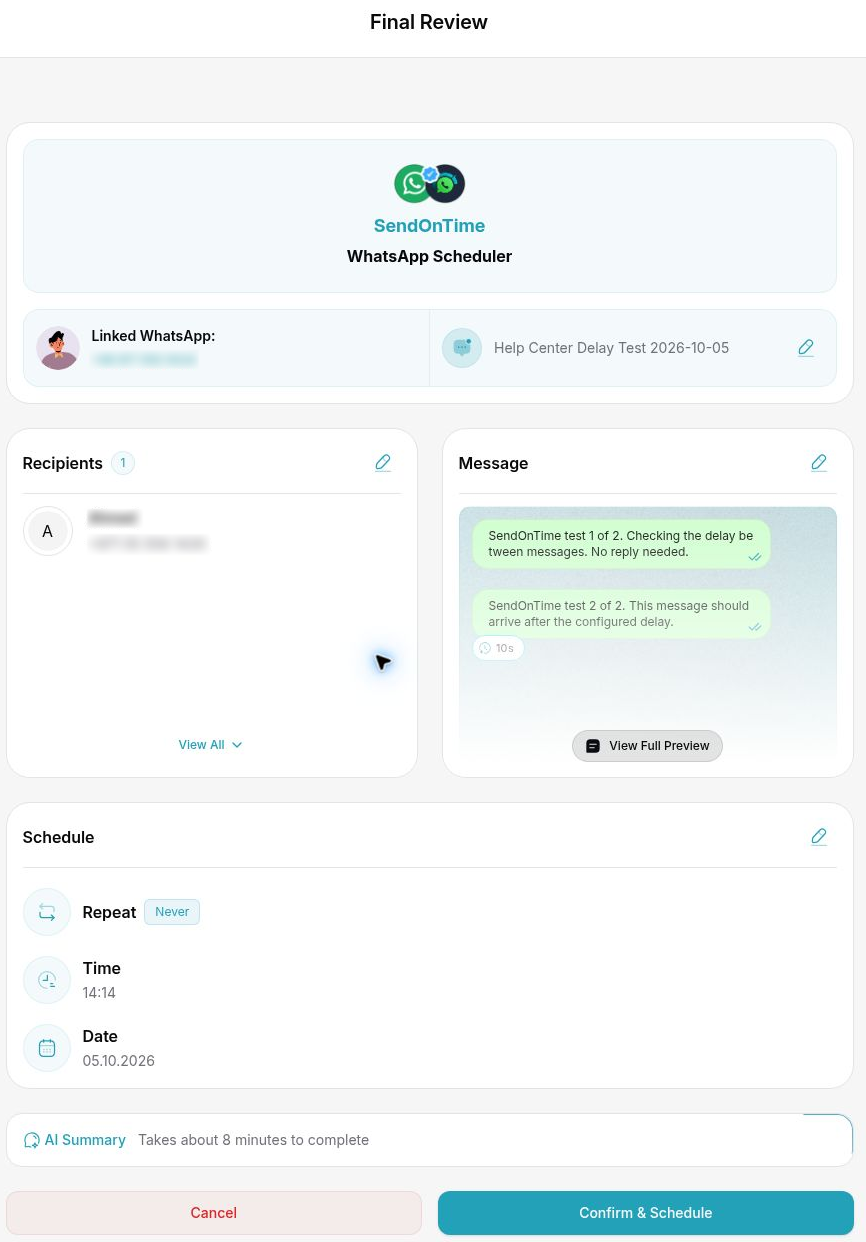
In Final Review, check the following before confirming:
- The sender shown under Linked WhatsApp: and the name of this schedule.
- The selected Recipients.
- The Message preview, including block order and any delays.
- The Schedule, including Repeat, Date and Time.
Use View All or View Full Preview when you need to inspect the recipient list or content more closely. Review any changes again before confirmation.
AI Summary can show an estimated total delivery time. Multi-recipient sending includes randomized pauses, so this estimate varies; it is not a promise that every recipient receives the message at the same instant.
Confirm and Schedule
When the sender, recipients, content and schedule are correct, select Confirm & Schedule.
Check the creation confirmation and find the new saved record in Overview. Saving the schedule and completing the later send are separate events.
Find Scheduled Messages
Open Overview from the sidebar. Use the Message Campaign view for campaign-level records and Messages for individual message records.
Find the schedule you created and check its saved details. Keep the WhatsApp account connected at send time; use Connection Status & Requirements if the connection drops.
If you cannot save the schedule, check the selected recipients, content and date/time, then use the contact form with the exact error and steps tried. Review Overview before repeating a save when you are unsure whether it completed.