
Create a text, image or video WhatsApp Status in SendOnTime.io, choose its publication schedule and confirm the review. The Status publishes from your linked WhatsApp account and uses that account’s WhatsApp Status privacy settings; you do not choose separate recipients in SendOnTime.
Applies to Pro and Enterprise
Before you start: Connect your own WhatsApp account, check the device timezone and review Status privacy in WhatsApp before scheduling.
Before You Start
Start with Schedule Status on the Dashboard or the Status creation area. Your phone or browser does not need to remain open at publication time, but the linked WhatsApp account must be connected. A disconnected publication is marked Failed and is not retried automatically.
Choose Status Type
In New Status, choose Text or Image or Video. Each Status Campaign contains one Status item. Use text for a short written update, or an image or video when the visual content is necessary.
Create Your Status
For text, enter the update and use the emoji picker, font/style control or background-color palette. For image or video, upload one intended item, review the preview and add a caption if useful. Use Status Content & Formatting or Status Media for the content details.
Confirm WhatsApp Audience
Review the linked WhatsApp account’s current Status privacy and audience settings in WhatsApp. Those settings govern publication; SendOnTime has no separate Status recipient selection. The message scheduler’s 100-recipient cap does not apply to Status publication.
Set Publish Schedule
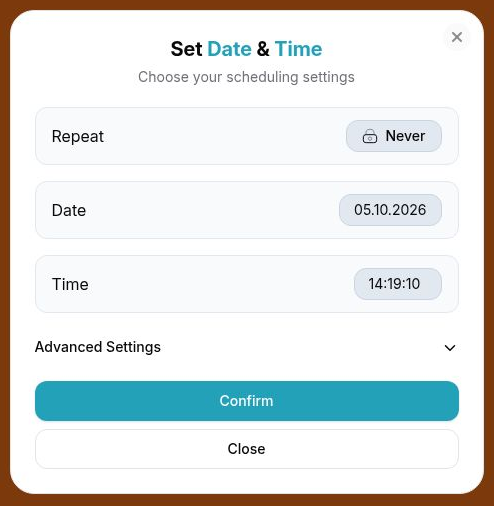
- Open the Status date and time settings.
- Choose Never for one publication, or Daily, Weekly or Monthly for repeating publication.
- Set the date and publish time; for repeats, also set the start, end and required days.
- Review the selected settings and confirm the schedule step.
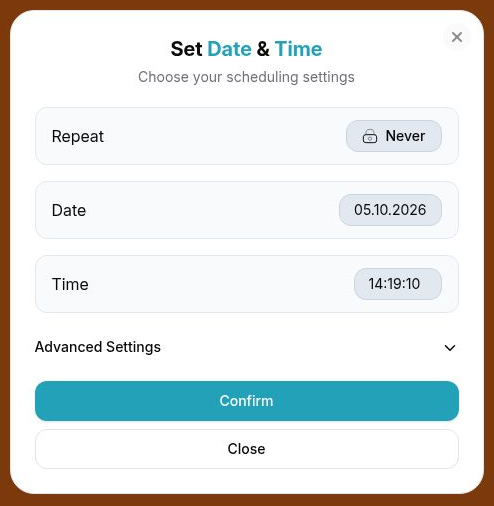
The one-time dialog displays Date and Time; repeating settings use the relevant date-range fields. SendOnTime detects the timezone from the device or browser. For recurring publication, continue with Recurring Status.
Review And Confirm
In Final Review, check Linked WhatsApp, the Status preview and Schedule, including the campaign name and repeat setting. Correct any wrong content or time before selecting Confirm & Schedule. A preview is not a published Status.
Check Scheduled Status
Open Overview and choose Status Campaign to find the campaign or Status to review individual publications. Confirm that the expected schedule appears, then check the individual publication outcome after its due time. Use Manage Scheduled Status for pause, resume and deletion guidance.