
Build a scheduled WhatsApp message from text and media blocks in SendOnTime.io. Format text, add captions, arrange the blocks and set delays between them, then check the complete message in Final Review before confirming the schedule.
Applies to All plans
Before you start: Select your recipients in the Message Scheduler first. Channel scheduling requires Enterprise and channel owner or admin access.
Supported Message Content
The composer offers Text, Photo, Document, Audio, Video and Contact blocks. Add the type that matches the content you want to send. A campaign uses one base message, which may contain several blocks; repeating the campaign reuses that message.
Voice messages can be recorded in the composer. For adding files or recordings, use Media & Attachments. Support for a content type does not mean every file format or native WhatsApp feature is available.
Add Text and Emoji
- Add a Text block and enter your message.
- Use the text editor’s Bold, Italic or Strikethrough controls where useful. Add emoji with the picker.
- Check any typed or pasted URLs: the editor turns them into links automatically.
Typing @ starts a mention, which resolves the recipient name and number when sending. There is no alignment button; the start of the text determines left-to-right or right-to-left direction. Keep the meaning clear even when formatting is removed.
Build Message Blocks
Add each part of the message as a separate block. For example, put an introduction in a text block and the supporting image in a photo block. The order in the composer is the order you should review before scheduling. Avoid empty or leftover test blocks.
Reorder or Remove Blocks
- Use the block reorder control to place each block in the intended sequence.
- Use the block delete control to remove unwanted content.
- Review the remaining blocks again, especially the first block and any media captions.
Removing or moving a block can change which content precedes a delay. Recheck the sequence after each change.
Set Delays Between Blocks
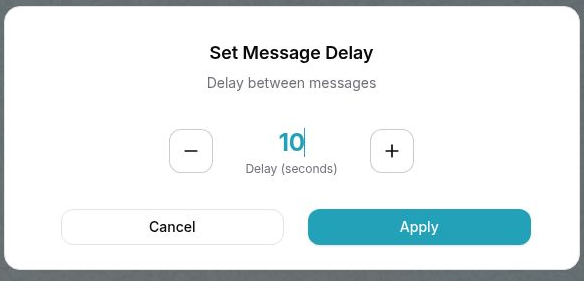
The first block has no Delay control. Later blocks use a delay in seconds from the preceding block. Open the delay control on the relevant later block, set the value and select Apply. Select Cancel to leave the setting unchanged.
A 10-second value is an example, not a required setting. Block delays are separate from the randomized pauses between different recipients in a multi-recipient send.
Add Media Captions
Supported media blocks can include text or a caption. Use the caption to explain the file or the action you want the recipient to take. Check spelling, links and context; do not rely on words embedded in the image as the only explanation.
Preview Message Content
In Final Review, inspect the message preview, block order, captions and delay values alongside the linked WhatsApp account, recipients and schedule. Make any needed correction before Confirm & Schedule. For an existing message, View opens Message Content in Overview; editing availability depends on the message state and cutoff described in Manage Scheduled Messages.